Amotions AI - Zoom App User Documentation
Posted on March 12, 2026
by Amotions AI Team
Complete user documentation for the Amotions AI Zoom app — covering installation, prerequisites, using the app in Zoom (open, sign-in, live session, guidance, step tracker, and call habits), troubleshooting, and support.
Introduction
Amotions AI gives every customer-facing professional an unfair advantage. We help organizations win more customer conversations through personalized AI roleplay, real-time in-call coaching, and post-meeting feedback powered by emotionally intelligent AI
The Amotions AI app in Zoom listens to your meeting conversation, analyzes it in real time, and surfaces live guidance to help you win the conversation while you are at it
While you focus on the conversation, Amotions AI tracks where you are in the sales process and provides contextual prompts that help guide the discussion forward.
This documentation explains how to install the app, how to configure auto-start before your first meeting (see Before Using the App), what you need first (see Prerequisites), how to use it in Zoom (see Using Amotions AI in Zoom), and how to remove it from your Zoom account if needed.
What Is Amotions AI?
Amotions AI is an emotionally intelligent AI assistant designed to improve live conversations. The platform provides real-time insights, roleplay training, and post-call guidance to help teams improve communication performance.
Inside Zoom, Amotions AI appears as a private sidebar panel that provides:
•
Real-time guidance during calls
•
Sales playbook step tracking
•
Conversation-aware prompts
•
Progress indicators for each step
Example live guidance shown during a call: "They're interested in your company. Briefly explore your company's value proposition." These prompts update continuously as the conversation evolves.
The guidance is visible only to the user running the app and is never visible to other meeting participants.
Adding the App — Installing from Zoom
Install Amotions AI directly from the Zoom desktop client:
1.
Sign in to the Zoom desktop app.
2.
In the left navbar, open the More tab and click Apps.
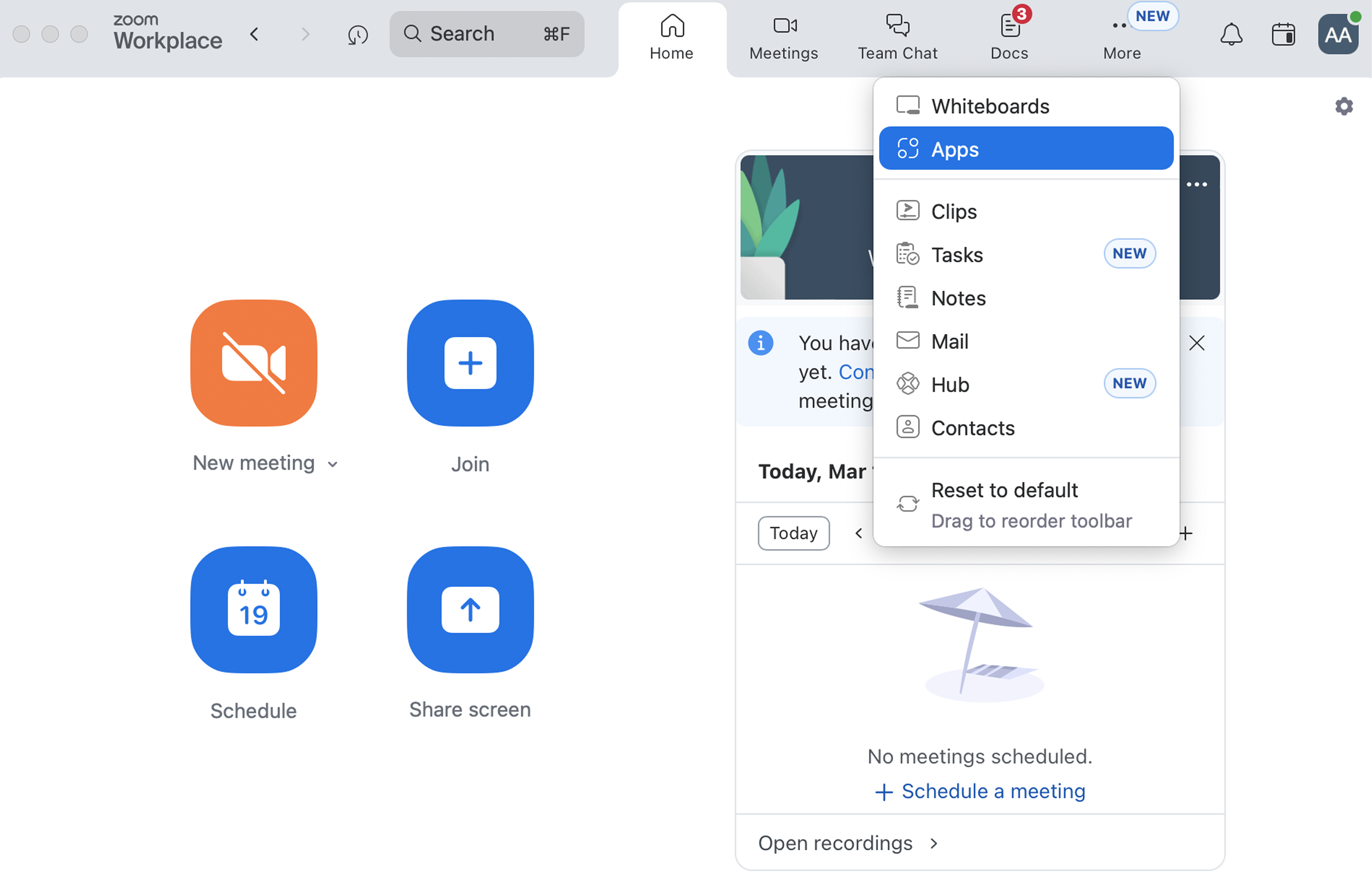
The Apps option in Zoom's navigation — accessible directly from the top bar or via the More dropdown menu.
3.
Click Add Apps at the top center of the page.
4.
In the search box on the left, search for Amotions and click Add to install.
5.
Grant all requested permissions. If prompted, sign in to your Amotions account (or create one), then click Authorize to complete installation.
6.
Sign in to your Zoom account when you are ready to use the app.
Once installed, Amotions AI appears under Apps → My Apps. You can also add it from the Zoom App Marketplace in a web browser using the same search-and-authorize flow.
Troubleshooting guide: If the app does not finish installing, is missing from My Apps, or you see errors during Add, see Troubleshooting below on this page.
Before Using the App — Auto-Start Setup
Complete this one-time setup so Amotions AI opens automatically whenever you start Zoom:
1.
Sign in to zoom.com with the same Zoom account you use in the desktop app.
2.
Click your profile icon and open Settings.
3.
Go to the Zoom Apps tab and scroll down.
4.
Under Choose another app to auto-start, click +, open the dropdown, and select Amotions.
After this, Amotions AI launches with Zoom so you do not need to open it manually before each meeting.
Prerequisites
Use everything in this list before relying on Amotions AI in Zoom. Install the app first (see Adding the App above), configure auto-start (see Before Using the App above), then confirm the items that apply to you.
•
Zoom Workplace Desktop Client on macOS or Windows 10 or later — Amotions AI supports desktop Zoom meetings only; mobile Zoom is not supported.
•
Stable internet connection.
•
Amotions AI installed and available under Apps → My Apps (or the in-meeting Apps panel).
•
Auto-start configured so Amotions launches when Zoom opens (see Before Using the App above).
•
An active Amotions AI account, or the ability to create one during Marketplace install.
•
A Zoom user account where the app is available to you.
•
For sign-in from Zoom: when a browser window opens, allow the Amotions authentication flow to complete.
•
For live features in a meeting: you can open apps from the meeting UI; when Zoom requires it, the host approves sharing meeting transcription with the app.
•
For the Step Tracker: a playbook configured in your Amotions workspace; expand the Amotions sidebar if the tracker is hidden.
•
For manual step advance when the control appears: Amotions playbook settings and permissions that allow that adjustment.
•
Enough screen space to keep the Zoom window and Amotions sidebar usable at the same time.
Using Amotions AI in Zoom
Each block below is a sub-topic: a styled title, a use case, then numbered steps. Confirm the Prerequisites section above before depending on in-meeting behavior.
Opening the app in Zoom
Use case: Open the Amotions sidebar from the desktop client after install so you can authenticate and run the app in meetings.
Steps
1.
Open the Zoom Workplace Desktop Client.
2.
Click Apps in the top navigation bar.
The Apps option in Zoom's navigation — accessible directly from the top bar or via the More dropdown menu.
3.
Select My Apps.
4.
Click Amotions AI.
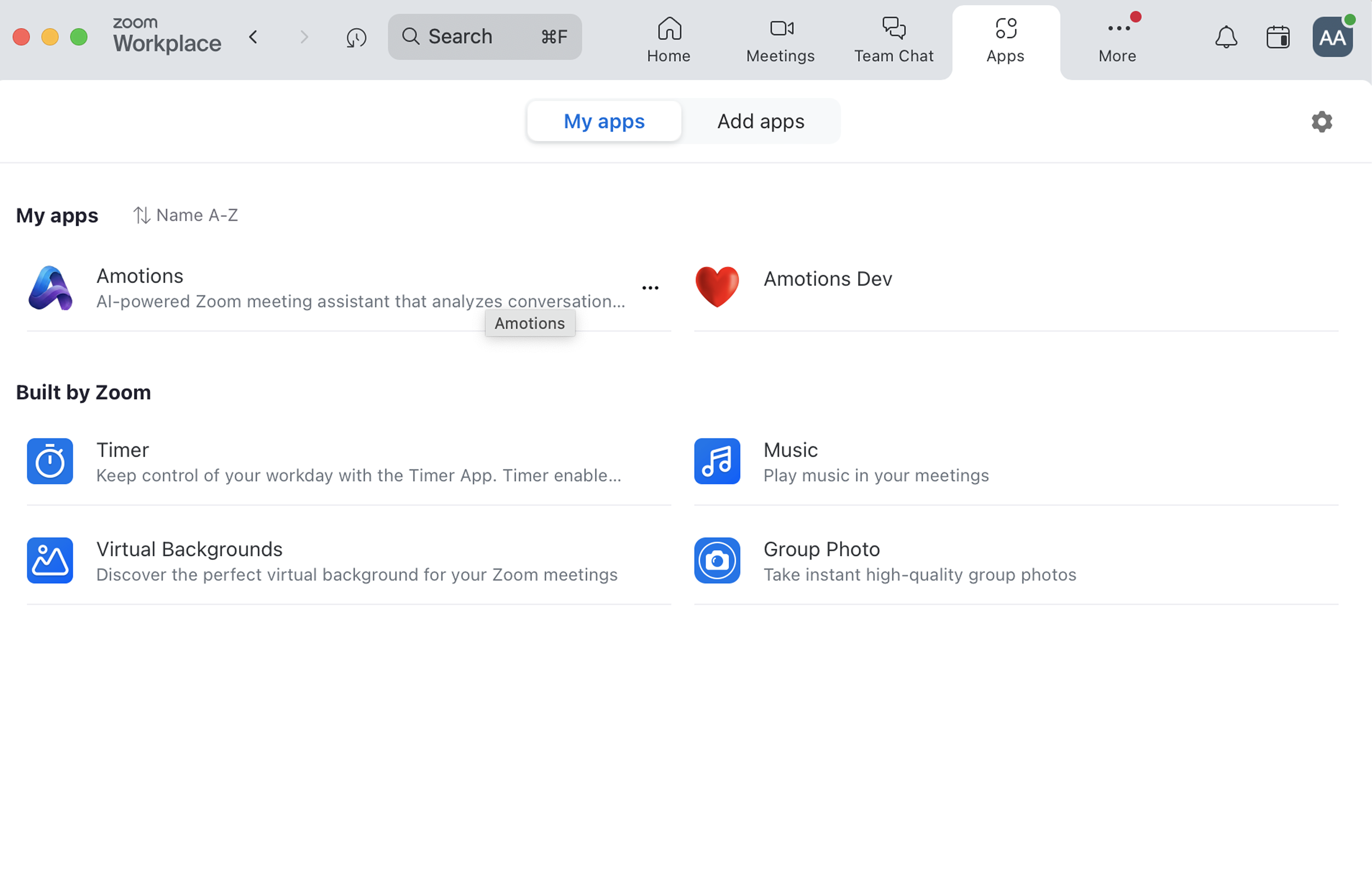
Amotions AI appears under "My Apps" alongside other installed Zoom apps. If you don't see it here, click "Add Apps" and search for Amotions AI.
5.
The sidebar opens on the right. If Amotions AI is not listed, use Add Apps and search for Amotions AI.
Logging into Amotions AI
Use case: Link your Amotions account to the Zoom sidebar the first time you open the app (or after you sign out) so live guidance and playbooks can load.
Steps
1.
Open Amotions AI from the sidebar (see Opening the app in Zoom above).
2.
When prompted, click Sign In in the sidebar.
3.
Complete sign-in on the Amotions website (email and password, or your org’s sign-in flow if applicable).
4.
After you see confirmation, return to Zoom — the sidebar should show you as signed in.
Starting a live session
Use case: Run Amotions AI during a meeting so live guidance and playbook tracking follow the conversation without a separate “start coaching” control.
Steps
1.
Start or join a Zoom meeting.
2.
Open the Apps panel from the meeting chrome.
3.
Select Amotions AI.
4.
Sign in if the sidebar prompts you.
5.
Let the meeting run — the sidebar engages automatically once the call is live (no extra activation button).
6.
If you are not the host, wait for any Zoom prompt for the host to approve sharing meeting transcription; after approval, the app behaves normally.
Live guidance
Use case: Glance at short, situation-aware lines while you talk — to handle objections, deepen discovery, move stages, and stay aligned with your playbook without scripting the call.
Steps
1.
Join a meeting and open Amotions AI from Apps (same flow as starting a live session).
2.
Look at the top of the sidebar: that is the live guidance stream; it updates as the discussion changes.
3.
When a line fits the moment, adapt it in your own words (do not read it verbatim).
4.
Use prompts to spot objections, ask better questions, transition topics, and nudge back to playbook priorities.
What you see (reference):
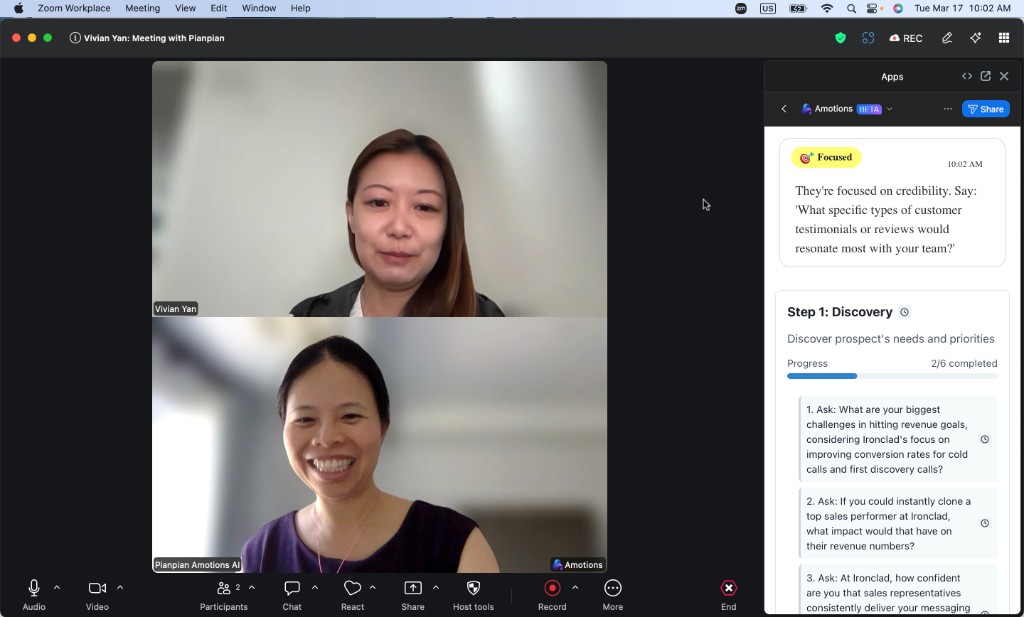
The Amotions AI sidebar during a live Zoom call, showing the Focused card with a suggested prompt and the step tracker with progress indicators.
Example line: "They're interested in your company. Briefly explore your company's value proposition."
Step tracker
Use case: See playbook stages, sub-tasks, and completion signals so important steps are not skipped before the call ends.
Steps
1.
With live guidance running, look below the guidance block for the Step Tracker.
2.
Read the current stage and sub-tasks; watch completion and progress indicators as the conversation moves.
3.
If the talk jumps ahead or backward versus automation, use manual advance when that control appears so guidance matches reality.
Reference — example stages (your org’s names may differ):
•
Introduction
•
Discovery
•
Qualification
•
Demo
•
Closing
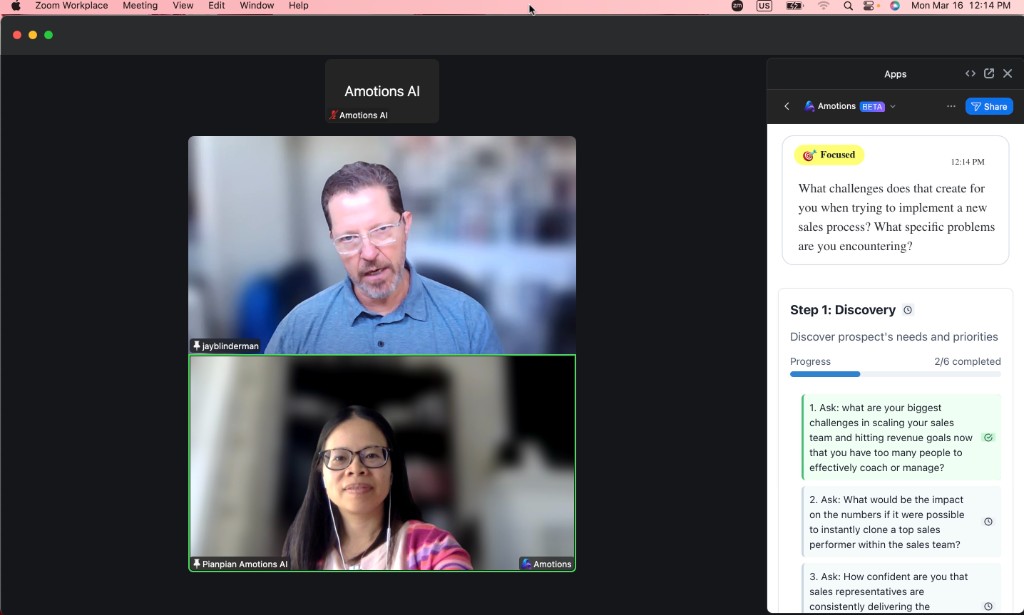
The Amotions AI sidebar showing the Step Tracker with playbook stages, sub-tasks, completion percentages, and progress indicators.
Best practices during calls
Use case: Get value from Amotions without breaking rapport — glance at the right times, use prompts lightly, and check stages when the conversation shifts.
Steps
1.
After the prospect finishes a thought, glance at the sidebar before you reply.
2.
Treat each prompt as a headline: take one idea and say it your way.
3.
At natural transitions (e.g. discovery → demo), check the Step Tracker against what you still need to cover.
4.
Keep the Amotions panel visible for the call so you are not scrambling to reopen it mid-thread.
Reminder: Amotions should support your natural flow — not replace listening, rapport, or judgment.
Ending a Meeting
When your meeting ends, end the Zoom meeting normally. The Amotions AI session closes automatically.
Your session progress and playbook data are saved to your Amotions account. You can review previous sessions through the Amotions dashboard.
Signing Out
If you want to switch accounts:
1.
Open the Amotions AI sidebar.
2.
Click your profile icon.
3.
Select Sign Out.
Your session data remains securely stored in your account and will be available the next time you log in from any device.
Removing the App
Users can remove Amotions AI from their Zoom account at any time.
Steps
1.
Navigate to the Zoom App Marketplace in your web browser.
2.
Click Manage in the top-right corner.
3.
Select Added Apps from the left-side panel.
4.
Locate Amotions AI in the list.
5.
Click the Remove button on the right side of its row.
6.
Confirm removal.
What de-authorization means for Zoom:
•
Zoom revokes OAuth / app authorization tokens tied to this integration.
•
Amotions AI can no longer access Zoom on your behalf (for example, opening the in-meeting app or using permissions you had granted).
•
The app disappears from your Apps panel and must be added again if you change your mind.
What may still exist after you remove the Zoom app:
•
Your Amotions AI product account is separate from the Zoom listing. Removing the Zoom app does not automatically delete your Amotions account.
•
Data you already stored in Amotions — such as playbooks, session history, or coaching artifacts — may remain until you ask us to delete it or close your account under our normal processes.
How to request deletion of your Amotions data or full account closure:
•
Email [email protected] from your registered Amotions email and describe the request (Zoom-only disconnect vs. full data deletion). We handle requests in line with our Privacy Policy: https://amotionsinc.com/privacy-policy
Troubleshooting
→
App not showing in Zoom
•
Restart the Zoom desktop client.
•
Reopen the Apps panel.
•
Check the My Apps tab.
•
Reinstall the app from the Marketplace.
→
Host approval required
•
If you are not the host, Zoom will ask the host to approve sharing meeting transcription. Ask the host to approve the notification.
→
Sidebar lost connection
•
Close the Amotions AI panel.
•
Reopen it from Apps → My Apps.
•
The app will reconnect automatically.
→
Login issues
•
Reset your password.
•
Ensure your Amotions account is active.
•
Check your internet connection.
Frequently Asked Questions
Q1.
Can other participants see the guidance?
A.
No. The Amotions AI sidebar is completely private. It does not appear in screen shares, meeting recordings, or participant views.
Q2.
Can I customize my sales playbook?
A.
Yes. Playbooks can be edited through the Amotions dashboard. Changes automatically sync with the Zoom app.
Q3.
Do I need to reinstall after updates?
A.
No. Updates are delivered automatically through the Zoom Marketplace.
Q4.
Is the app available on mobile?
A.
Currently, Amotions AI supports Zoom desktop clients only.
Q5.
Does Amotions AI record meetings?
A.
No. The app processes audio in real time to generate guidance but does not control Zoom recordings.
Support
If you need help, the Amotions support team is available:
•
Support hours: Monday - Friday, 9:00 AM - 6:00 PM PST
•
First response SLA: Within 24 hours
•
Support contact: [email protected]
•
Support page: https://amotionsinc.com/pricing/contact
Amotions AI is a Silicon Valley based startup building an emotionally intelligent teammate embedded in sales calls. We provide live coaching in-call and post-call, and tailored AI role play, while answering technical questions. We boost win rates and cut ramp time, starting with sales and expanding to other use cases. https://www.amotions.ai
Related resources: pricing, FAQ, and AI sales coaching solutions.
Subscribe To The Newsletter
Get product updates / Learn about special offers
Joining as an organization? Contact us